How To Move Newer, Home and Older Posts Links to top of Posts

5dc3603f31f3266565b2f99aa2d712a4delicious

These navigation links are only available in the Layout Template.If you have a Classic template you have to upgrade by going to Template---->Customize Design--->Upgrade to get them.

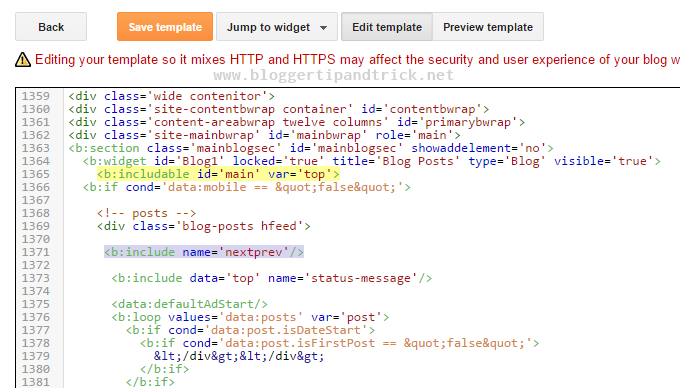
log in to your dashboard--> layout- -> Edit HTML-->check Expand Widget Templates.Now scroll down to where you see this:-

<!-- navigation -->
<b:include name='nextprev'/>

If you want to show them only at the top you can Cut these lines to remove to the Windows Clipboard.
or
If you want them both at the top and the bottom then do Copy.

Scroll up to find this code :

<b:includable id='main' var='top'>
<!-- posts -->
<div class='blog-posts'>

Paste the navigation code below the last line of the above code. Save Template and refresh your site.

If you want to customize them further you can change this code below as of your template :

#blog-pager-newer-link {
float: left;
}

#blog-pager-older-link {
float: right;
}

#blog-pager {
text-align: center;
}

Save Template and refresh your site.

File Under : background, change template, post

How To Move Newer, Home and Older Posts Links to top of Post.

5dc3603f31f3266565b2f99aa2d712a4delicious

The Newer, Home and Older Posts links are available at the bottom of each post on the post pages. These navigation links are only available in the Layout Template. If you have a Classic template you have to upgrade by going to Template---->Customize Design--->Upgrade to get them.

At the bottom of the post these links are situated along with the Label links and the Subscribe to Posts Atom feed link making a lot of clutter. You can reduce the clutter by switching them to the top of the post above the post title. This style is seen in many WordPress blogs.

To switch then to the top login at Blogger.com and click on Layout link on Dashboard. Then click on Edit Html subtab of Template tab. Put a check in Expand widgets template checkbox at the top of the template code box. Scroll down to this line of code in the blog posts footer widget :

<!-- navigation -->
<b:include name='nextprev'/>

If you want to have them only at the top you can do and Edit---->Cut to remove these lines to the Windows Clipboard. If you want them both at the top and the bottom then do an Edit----->Copy. Scroll up to find this code :

<b:includable id='main' var='top'>
<!-- posts -->
<div class='blog-posts'>

Paste the navigation code below the last line of the above code. Save Template. Clear Cache and view Blog.

You can see them at the top above the post title on the post pages of this blog. If you want to customize them further you can change this code in the CSS part of your template :

#blog-pager-newer-link {
float: left;
}

#blog-pager-older-link {
float: right;
}

#blog-pager {
text-align: center;
margin-top:20px;
}

Use Preview to check the effect before saving changes.

File Under : change template

5 Responses to “How To Move Newer, Home and Older Posts Links to top of Post.”

  1. Diktat says:

    Is there anyway to assign these Posts links to buttons appearing in the header?

  2. Blogger Tips And Tricks|Latest Tips For Bloggers says:

    Diktat,Thank you for your comment.

    you can Replace Newer, Home and Older Post Link With your own Images(bottons).read this post.

    http://bloggertipandtrick.blogspot.com/2009/04/how-to-replace-newer-home-and-older.html

  3. Diktat says:

    Thank you very much.

  4. Ravi says:

    Thanks,it worked for me, top and bottom but it's display 'newer posts' and 'previous posts' multiple times, 4 to be exact. Can anyone please help to fix this??

    Instead of just 'newer post', it's saying 'newer post newer post newer post newer post'

  5. Sasha says:

    How To Remove Or Hide “Newer Post-Older Post” Links in New Blogger template HTML editor???? Please help..
    Because I did not find the code in new blogger html editor.

    "#blog-pager-newer-link {
    float: left;
    }
    #blog-pager-older-link {
    float: right;
    }
    #blog-pager {
    text-align: center;
    }"
    My Blog is http://www.mobilepricess.com

Leave a Reply