Screen capturing and recording software is essential for bloggers, developers, teachers, support teams, designers, and content creators. Whether you need quick screenshots, full-screen recording, scrolling capture, annotated images, GIF creation, or polished tutorial videos, choosing the right tool can save a lot of time and improve your workflow.
This updated 2026 guide covers the best screen capture and recording tools available today, including free, open-source, built-in, and premium options. Instead of mixing every app into one flat list, this article highlights what each tool is best for so you can choose the right one faster.
Quick Summary
- Best free screen recorder: OBS Studio
- Best free power-user screenshot tool: ShareX
- Best premium all-in-one tool: Snagit
- Best built-in Windows option: Snipping Tool
- Best quick Windows recorder: Xbox Game Bar
- Best lightweight screenshot tool: Greenshot
- Best for documentation workflows: Screenpresso
- Best lightweight paid capture tool: FastStone Capture
- Best for designers: PicPick
- Best for animated GIF recording: LICEcap
Best Screen Capturing & Recording Software
1. OBS Studio
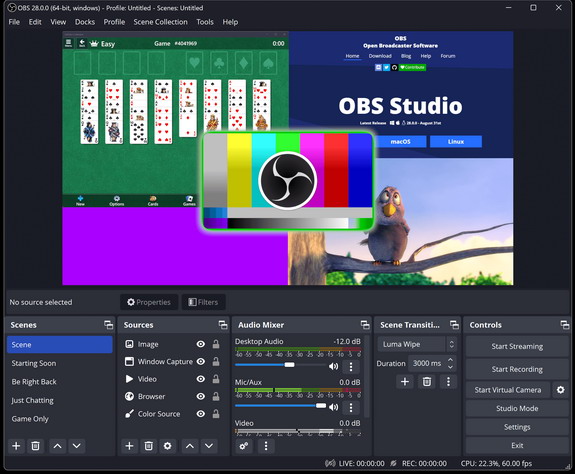
OBS Studio is one of the best free tools for screen recording and live streaming. It is powerful, flexible, open source, and available for Windows, macOS, and Linux. If your main need is high-quality recording with audio sources, webcam overlays, multiple scenes, and advanced control, OBS Studio is the strongest free choice.
Best for: Professional recording, tutorials, YouTube videos, live streaming, advanced workflows
Platforms: Windows, macOS, Linux
License: Free and Open Source
Official website: https://obsproject.com/
2. ShareX
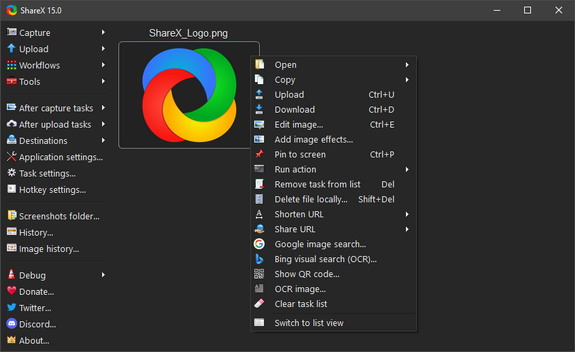
ShareX is an excellent free and open-source screen capture tool for Windows. It is especially popular with power users because it supports region capture, scrolling screenshots, quick sharing, workflow automation, GIF recording, and many post-capture actions. If you want a highly customizable screenshot tool without paying anything, ShareX is hard to beat.
Best for: Advanced screenshots, automation, scrolling capture, quick sharing
Platforms: Windows
License: Free and Open Source
Official website: https://getsharex.com/
3. Snagit
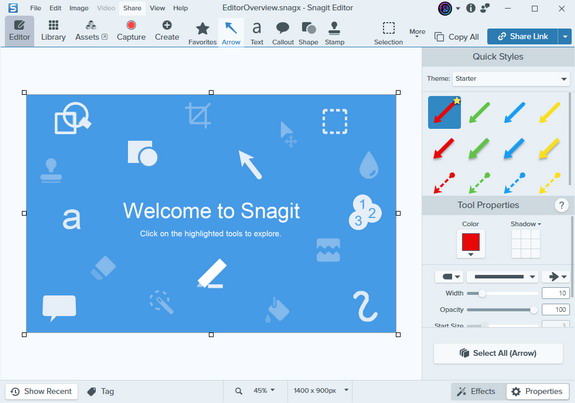
Snagit is one of the most polished premium tools for both screenshots and screen recording. It is ideal for people who create tutorials, product walkthroughs, documentation, visual instructions, or support content. Its real strength is not just capturing your screen, but helping you quickly annotate, explain, and present what you captured in a professional way.
Best for: Business users, educators, bloggers, documentation, polished visual communication
Platforms: Windows, macOS
License: Commercial
Official website: https://www.techsmith.com/snagit/
4. Snipping Tool
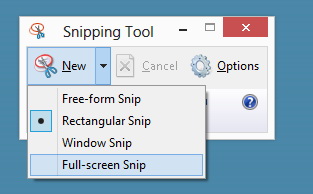
Snipping Tool has become much more useful on modern Windows systems. It is no longer just a simple screenshot utility. It now supports both image snips and video snips, making it a very practical built-in option for quick captures without installing any third-party software. For many casual users, this may be enough on its own.
Best for: Quick screenshots and simple screen recording on Windows
Platforms: Windows
License: Built-in / Free
Official page: https://support.microsoft.com/en-us/windows/use-snipping-tool-to-capture-screenshots-00246869-1843-655f-f220-97299b865f6b
5. Xbox Game Bar
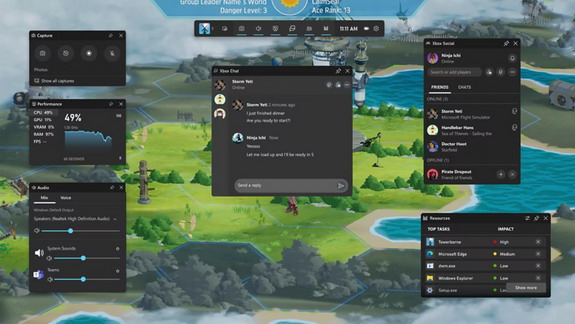
Xbox Game Bar is another built-in Windows option that is useful for quick screen recording, especially for apps and gameplay. It is not as flexible as OBS Studio, but it is very convenient when you need to start recording quickly without setting up a separate program.
Best for: Quick app recording, gameplay recording, simple screen capture on Windows
Platforms: Windows
License: Built-in / Free
Official info: https://support.microsoft.com/en-us/windows/use-a-screen-reader-to-record-your-screen-with-xbox-game-bar-5328cd25-9046-4472-8a14-c485f138802c
6. Greenshot
Greenshot remains one of the best lightweight screenshot tools for Windows. It is fast, simple, and great for daily productivity. If you mainly need screenshots with quick annotation, highlighting, obfuscation, and export options, Greenshot is still a very good choice.
Best for: Lightweight screenshots, quick annotations, everyday office use
Platforms: Windows
License: Open Source
Official website: https://getgreenshot.org/
7. Screenpresso
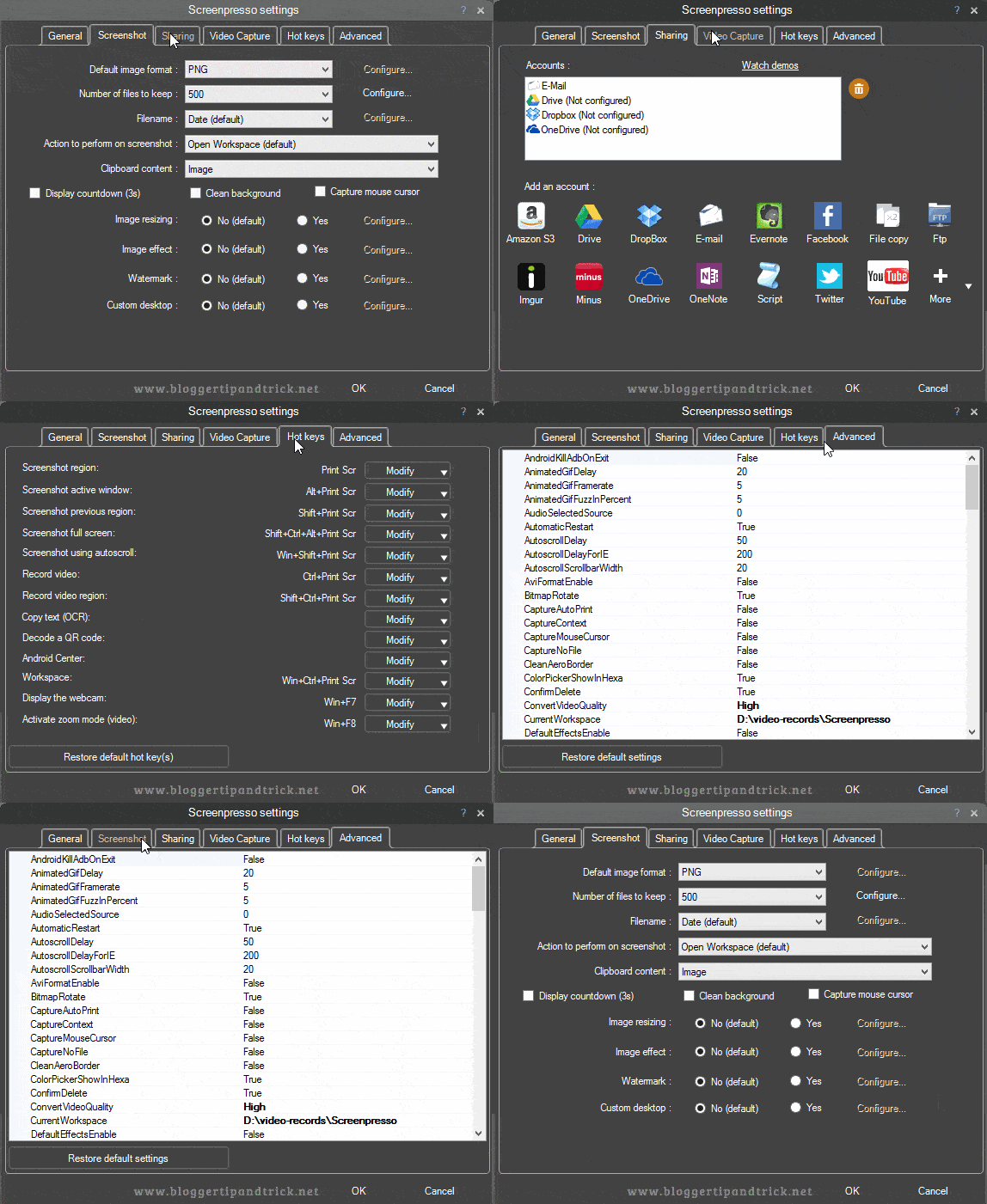
Screenpresso is still a strong choice for people who create documentation, software walkthroughs, and training content. It combines screenshot capture, screen recording, editing, and project organization in a way that works well for support teams and tutorial creators.
Best for: Documentation, support content, training guides, organized capture workflows
Platforms: Windows
License: Freemium
Official website: https://www.screenpresso.com/
8. FastStone Capture
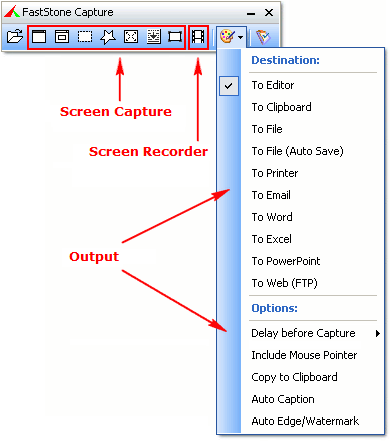
FastStone Capture is a compact and capable paid capture tool that many users still appreciate for its speed and simplicity. It supports screenshots, scrolling capture, annotation, and screen recording in a lightweight package. It is a good option for users who want something simpler than Snagit but still feature-rich.
Best for: Lightweight paid capture and recording, practical desktop workflows
Platforms: Windows
License: Commercial
Official website: https://www.faststone.org/FSCaptureDetail.htm
9. PicPick
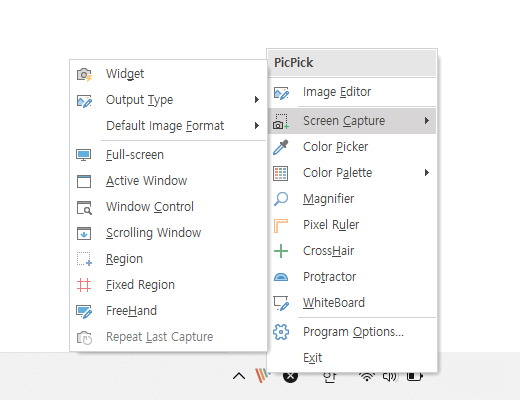
PicPick is especially useful for designers and developers because it combines screenshots with extra visual tools such as a color picker, pixel ruler, magnifier, protractor, and crosshair. It is more than just a screenshot app, which makes it useful in design and UI work.
Best for: Designers, developers, UI work, visual measurement tools
Platforms: Windows
License: Free Personal / Commercial options available
Official website: https://picpick.app/
10. LICEcap

LICEcap is a small and simple tool designed mainly for recording animated GIFs. It does not try to be a full screenshot suite, but for quick visual demonstrations, bug reports, and tiny looped tutorials, it is still very useful.
Best for: GIF recording, short visual demonstrations, bug reporting
Platforms: Windows, macOS
License: Free
Official website: https://www.cockos.com/licecap/
11. Shutter
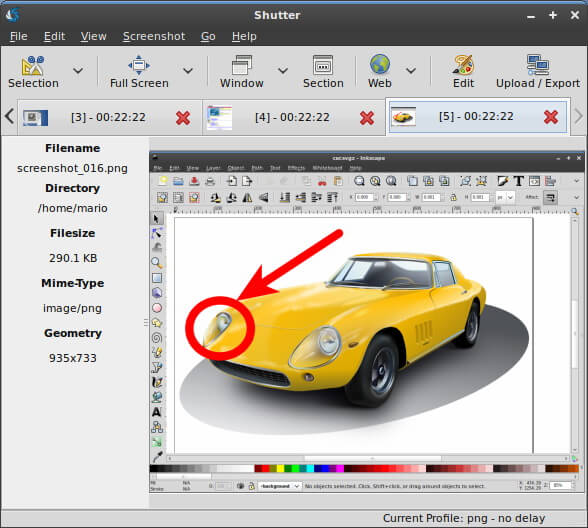
Shutter is still worth mentioning for Linux users looking for a dedicated screenshot tool. It is focused more on screenshots than modern full recording workflows, but it remains relevant in Linux-focused lists.
Best for: Linux screenshot workflows
Platforms: Linux
License: Open Source
Official website: https://shutter-project.org/
12. GifCam
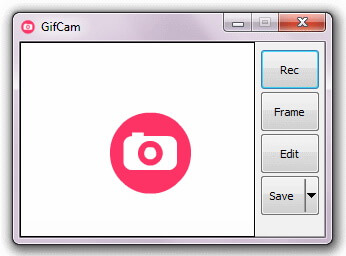
GifCam is another lightweight option for animated GIF recording. It is very simple and still useful for users who specifically want quick GIF output without extra complexity.
Best for: Simple GIF screen capture on Windows
Platforms: Windows
License: Free
Official website: https://blog.bahraniapps.com/gifcam/
How to Choose the Right Tool
- If you want the best free professional recorder, choose OBS Studio.
- If you want the best free advanced screenshot tool, choose ShareX.
- If you want the easiest premium all-in-one tool, choose Snagit.
- If you want something already built into Windows, use Snipping Tool or Xbox Game Bar.
- If you want something lightweight for screenshots, choose Greenshot.
- If you create documentation and tutorials regularly, Screenpresso is a strong choice.
- If you need animated GIF capture, try LICEcap or GifCam.
Final Thoughts
The best setup for most people is not installing every capture tool available. A much smarter approach is to pick one screenshot tool and one recording tool.
For a powerful free setup, ShareX + OBS Studio is an excellent combination. For a premium productivity-focused setup, Snagit alone may be enough for both screenshots and recording.
This updated list gives a more accurate picture of the current screen capture landscape and is much stronger than an older flat list of mixed tools from past years.