Every Facebook account has a unique numeric Profile ID. It is a string of digits that helps Facebook identify your account, even if you change your username. This ID is especially useful for developers, marketers, or anyone integrating Facebook features into websites or apps.
In this simple guide, you'll learn how to find your Facebook profile ID in a few easy steps.
When you visit your Facebook profile using a web browser, you'll see your profile URL in the address bar like this: https://www.facebook.com/profile.php?id=1234567890
The number that appears after id= is your Facebook Profile ID.
But if you've set a custom username for your Facebook profile, your profile ID will no longer appear in the browser's address bar. Your profile URL will look like this: https://www.facebook.com/yourusername
Note: To follow this tutorial, you must use a desktop web browser such as Google Chrome, Firefox, Safari, or Microsoft Edge. Mobile browsers do not support viewing page source.
To find your numeric Facebook Profile ID, follow the steps below:
- Open your Facebook profile page using a desktop web browser.
- Right-click anywhere on the page and select "View Page Source". Alternatively, press Ctrl + U on Windows or Command + Option + U on Mac to open the page source directly.
- Once the source code tab opens, press Ctrl + F on Windows or Command + F on Mac to open the Find/Search tool.
- Search for: "profile_id" or "owning_profile_id".
You'll see something like "profile_id":"1234567890" or "owning_profile_id":"1234567890".
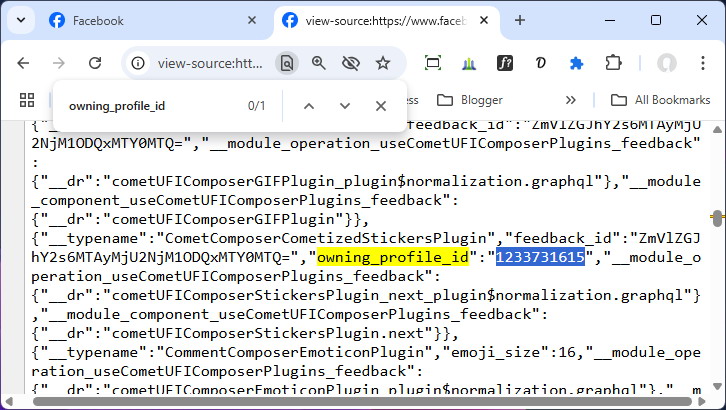
The number inside the quotes is your Facebook Profile ID.
Note: Facebook Profile IDs are unique numeric strings that may be 10, 14, 15, or more digits long. The length varies by account age and type, but all are valid as long as they're numeric and tied to your profile.