By default, WordPress allows administrators to directly edit theme and plugin files through the dashboard. Although this feature is helpful, it can be a security risk if someone who shouldn't have access gets into the admin area.
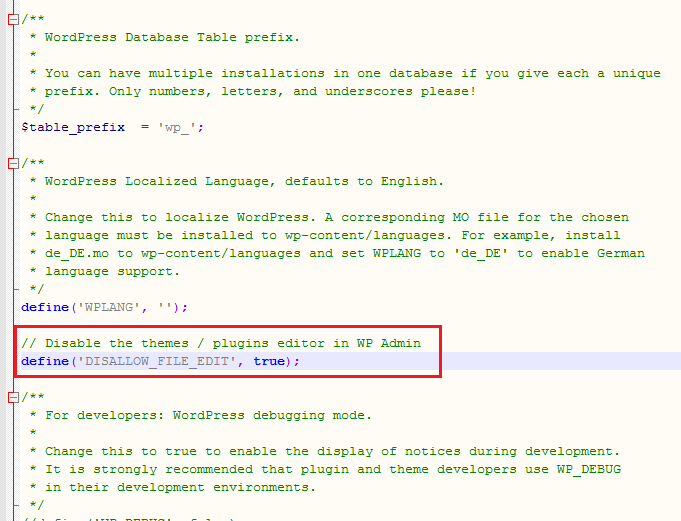
You can disable the built-in Theme Editor and Plugin Editor by adding the following line to your wp-config.php file:
// Disable the themes and plugins editor in WordPress Admin
define('DISALLOW_FILE_EDIT', true);
Add this line just above the following line in your wp-config.php file:
/* That's all, stop editing! Happy publishing. */
Once added, the following editor URLs will be inaccessible and will show a permissions error message:
- Theme Editor: http://example.com/wp-admin/theme-editor.php
- Plugin Editor: http://example.com/wp-admin/plugin-editor.php
Here is an example of how the code should appear in your file:
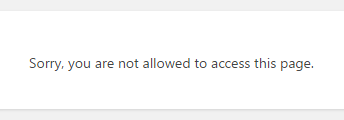
After applying this setting, attempting to access the editor pages will result in an error message like this:
How to Disable All File Modifications?
If you also want to block all types of file modifications, such as installing or updating plugins and themes, you can use the following code instead of the one above:
define('DISALLOW_FILE_MODS', true);
This code disables all file modifications through the WordPress admin panel, including the Theme and Plugin Editors, plugin and theme installation, updates, and core updates.
Note: This method is fully compatible with all recent WordPress versions.