Ever wondered what your Facebook profile looks like to someone who isn't on your friends list? Thankfully, Facebook has a handy feature called View As that lets you preview your profile the way others see it. It's quick, easy, and useful if you want to make sure your private stuff stays private.
Check from a Computer
- Log in to Facebook from your web browser.
- Click your name or profile picture at the top to open your profile.
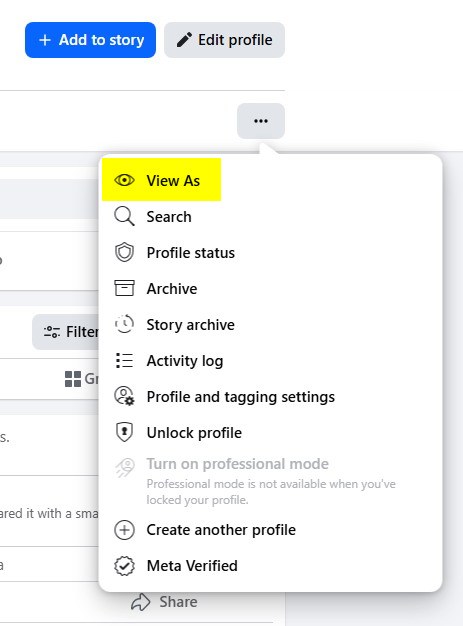
- On your cover photo, click the three dots (···) button.
- Select View As from the dropdown menu.
- Your profile will reload and show how it looks to the public (people who aren’t your friends).
Check from the Mobile App
- Open the Facebook app on your phone.
- Tap your profile picture to go to your profile page.
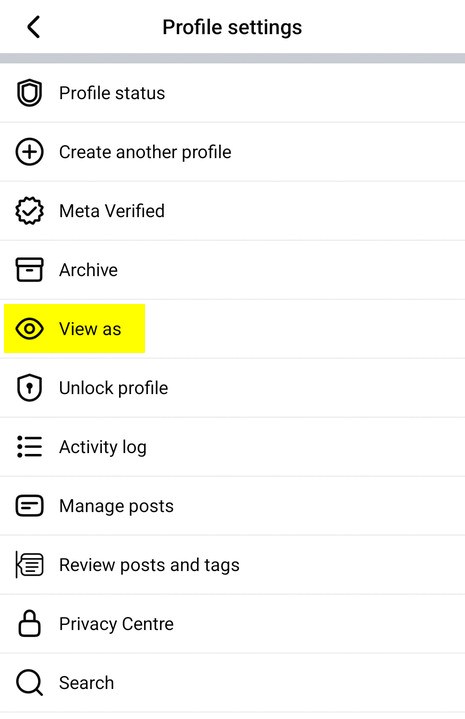
- Tap the three dots (···) next to Edit Profile.
- Choose View As.
- You’ll now see your profile as it appears to the public.
Why This Matters
Checking your profile as public helps you stay in control of your privacy. For example:
- Make sure personal photos aren’t visible to strangers.
- Double-check which details like phone number or email are shown.
- See how your profile looks if you’re using it for professional or business purposes.
Quick Privacy Fixes
If you see something you’d rather keep private, you can adjust it:
- Go to Settings > Privacy and change who can see your posts.
- Edit visibility for profile details like birthday, contact info, or hometown.
- Use Friends Only or Only Me for sensitive info.
That’s all it takes. The next time you’re curious about how your Facebook profile looks to others, just use the View As feature and you’ll know exactly what’s showing.